Tuesday, June 5, 2012

Awesome Google !! (in-built features)

About Google
Google built-in features
Google’s mission is to organize the world’s information and make it universally accessible and useful.
The above lines are from official Google page. Other than search through your words only Google can serve you in many way & we often go for the help of any application or any website providing that feature without knowing that there are a lots of things in built in the browser itself which you are using for years, hence can't get through it. Let you know something :  

Weather

  • To see the weather for many U.S. and worldwide cities, type “weather” followed by the city and state, U.S. zip code, or city and country.

Stock Quotes

  • To see current market data for a given company or fund, type the ticker symbol into the search box. On the results page, you can click the link to see more data from Google Finance.

Time

  • To see the time in many cities around the world, type in “time” and the name of the city.

Sports Scores

  • To see scores and schedules for sports teams type the team name or league name into the search box. This is enabled for many leagues including the National Basketball Association, National Football League, National Hockey League, and Major League Baseball.

Sunrise & Sunset

  • To see the precise times of sunrises and sunsets for many U.S. and worldwide cities, type “sunrise” or “sunset” followed by the city name.

Calculator

  • To use Google’s built-in calculator function, simply enter the calculation you’d like done into the search box
Book Search
  • If you’re looking for results from Google Book Search, you can enter the name of the author or book title into the search box. Then, click on “Books” from the left-hand navigation to view book content. You can click through on the record to view more detailed info about that author or title.

Earthquakes

  • To see information about recent earthquakes in a specific area type “earthquake” followed by the city and state or U.S. zip code. For recent earthquake activity around the world simply type “earthquake” in the search box.

Unit Conversion

  • You can use Google to convert between many different units of measurement of height, weight, and volume among many others. Just enter your desired conversion into the search box and we’ll do the rest.

Public Data

  • To see trends for population and unemployment rates of U.S. states and counties, type "population" or "unemployment rate" followed by a state or county. You can click through to a page that lets you compare different locations.

People Profiles

  • If you’re looking for someone you just met or a long-lost friend, enter the name of that person plus some identifying words about him or her to see a list of people with that name.

Currency Conversion

  • To use our built-in currency converter, simply enter the conversion you’d like done into the Google search box and we’ll provide your answer directly on the results page.

Local Search

  • Local Search
  • Movie Showtimes

Health Search

  • Health Conditions
  • Medications
  • Poison Control
  • Suicide Prevention
  • Flu Vaccine Finder

Query Refinements

  • Related Search
  • Fill in the Blank

Search by Number

  • Package Tracking
  • Patent Numbers

Set-up guide for Hotmail/Gmail account in "Evolution"

Evolution
Here it is recommended for Ubuntu users who often use a mail client that they should go for "Evolution" instead of Thunderbird or Postler or any other client. As Thunderbird suffice all its requirements through  its Mozilla powered Add-ons but still for most of the Operating System Evolution is recommended. Often we go for the settings provlem in this mail client while it is more user friendly in case of Thunderbird. Here we provide the easy setup guide for Hotmail (live)/Gmail users : 
Hotmail :-
When you open up Evolution for the first time you’ll see a setup assistant
  • Forward until you get to the “Identity” screen.
  • Enter you full name and your full email address. 
  • If you want your hotmail account to be your default address leave the tag next to the box.
  • Press forward until you reach the “Receiving Email” windows.
  • Pick “pop” from the drop down list.
  • Fill in the following information:
Server:  pop3.live.com
Username: xxx@hotmail.com (use full email address)
Security: SSL
  • Leave the rest as it is
In the next screen you’ll have to make some decisions for yourself.
  • Now we hit the “Sending Email” screen.  Enter this:
Server:  smtp.live.com
Encryption: SSL
Username: xxx@hotmail.com (enter full email address)
  • Leave the rest as it is
Finally go for a entering password dialog box & it is all yours.
Gmail :-
Here we need some help from our own Gmail account.
  • First go to gmail using your internet browser and log in.
  • On the top of the page there should be a “preferences” link (next to your email address).
  • Now click on the “tab” where you see “imap” and “pop” mentioned.
  • Make sure pop and imap is enabled.
  • If that is done, open evolution.
As we already have an account the Wizard won’t appear.
  • Go to “Edit -> Preferences” and in the window that pops up you will be able to add a new account.
  • In the “Identity” window, enter your name and your email address.
  • Now you’ll  hit the “Receiving Email” window again.
  • Once again choose “pop” from the dropdown list.
  • The server is : “pop.gmail.com” and your username should be your full gmail address. The security should be SSL.
Choose as you see fit in the next window.
  • In the following window, called “Sending Email” enter the following :
Server type: SMTP
Server: smtp.gmail.com
Security: SSL
Username: xxx@gmail.com (enter full email address)
  • Leave the rest as it is.
  • After completion of the next window press apply and then in Evolution press “send/receive”.

Sunday, May 27, 2012

Encroach your VideoLAN more with some hotkeys !

VLC Media Player (Hotkeys)

CommandCodeHotkey
Fullscreenkey-toggle-fullscreenf
Leave fullscreenkey-leave-fullscreenEsc
Play/Pausekey-play-pauseSpace
Pause onlykey-pause[
Play onlykey-play]
Fasterkey-faster+
Slowerkey-slower-
Normal ratekey-rate-normal=
Faster (fine)key-rate-faster-fineUnset
Slower (fine)key-rate-slower-fineUnset
Nextkey-nextn
Previouskey-prevp
Stopkey-stops
Positionkey-positiont
Very short backwards jumpkey-jump-extrashortShift-Left
Very short forward jumpkey-jump+extrashortShift-Right
Short backwards jumpkey-jump-shortAlt-Left
Short forward jumpkey-jump+shortAlt-Right
Medium backwards jumpkey-jump-mediumCtrl-Left
Medium forward jumpkey-jump+mediumCtrl-Right
Long backwards jumpkey-jump-longAlt-Ctrl-Left
Long forward jumpkey-jump+longAlt-Ctrl-Right
Next framekey-frame-nexte
Activatekey-nav-activateEnter
Navigate upkey-nav-upUp
Navigate downkey-nav-downDown
Navigate leftkey-nav-leftLeft
Navigate rightkey-nav-rightRight
Go to the DVD menukey-disc-menuShift-m
Select previous DVD titlekey-title-prevShift-o
Select next DVD titlekey-title-nextShift-b
Select prev DVD chapterkey-chapter-prevShift-p
Select next DVD chapterkey-chapter-nextShift-n
Quitkey-quitCtrl-q
Volume upkey-vol-upCtrl-Up
Volume downkey-vol-downCtrl-Down
Mutekey-vol-mutem
Subtitle delay upkey-subdelay-uph
Subtitle delay downkey-subdelay-downg
Audio delay upkey-audiodelay-upk
Audio delay downkey-audiodelay-downj
Cycle audio trackkey-audio-trackb
Cycle through audio deviceskey-audiodevice-cycleShift-a
Cycle subtitle trackkey-subtitle-trackv
Cycle source aspect ratiokey-aspect-ratioa
Cycle video cropkey-cropc
Toggle autoscalingkey-toggle-autoscaleo
Increase scale factorkey-incr-scalefactorAlt-o
Decrease scale factorkey-decr-scalefactorAlt-Shift-o
Cycle deinterlace modeskey-deinterlaced
Show interfacekey-intf-showi
Hide interfacekey-intf-hideShift-i
Take video snapshotkey-snapshotShift-s
Go back in browsing historykey-history-backShift-g
Go forward in browsing historykey-history-forwardShift-h
Recordkey-recordShift-r
Dumpkey-dumpShift-d
Zoomkey-zoomz
Un-Zoomkey-unzoomShift-z
Toggle wallpaper modekey-wallpaperw
Display OSD menu on topkey-menu-onAlt-Shift-m
Do not display OSD menukey-menu-offAlt-Ctrl-m
Highlight widget on the rightkey-menu-rightAlt-Shift-Right
Highlight widget on the leftkey-menu-leftAlt-Shift-Left
Highlight widget on topkey-menu-upAlt-Shift-Up
Highlight widget belowkey-menu-downAlt-Shift-Down
Select current widgetkey-menu-selectAlt-Shift-Enter
Crop one pixel from the topkey-crop-topAlt-r
Uncrop one pixel from the topkey-uncrop-topAlt-Shift-r
Crop one pixel from the leftkey-crop-leftAlt-d
Uncrop one pixel from the leftkey-uncrop-leftAlt-Shift-d
Crop one pixel from the bottomkey-crop-bottomAlt-c
Uncrop one pixel from the bottomkey-uncrop-bottomAlt-Shift-c
Crop one pixel from the rightkey-crop-rightAlt-f
Uncrop one pixel from the rightkey-uncrop-rightAlt-Shift-f
Randomkey-randomr
Normal/Repeat/Loopkey-loopl
1:4 Quarterkey-zoom-quarterCtrl-1
1:2 Halfkey-zoom-halfCtrl-2
1:1 Originalkey-zoom-originalCtrl-3
2:1 Doublekey-zoom-doubleCtrl-4
Very short jump length (integer)extrashort-jump-size3


Saturday, May 12, 2012

Gmelius : Advanced Gmail UI

Google started excavation on its new user interface for Gmail on the last year.  Till now it is not so popular and everybody is not in love with the new design. But it is so recommended for a better guidance at your mail reading. There are a lots of browser extensions available in the net-market like Google Chrome, Mozilla Firefox, Opera Mini. But people using other browsers may not have access this extensions & another thing must be noticed that the most popular browser Google Chrome is compatible from Chrome 18. 
After all Gmelius is a cross-browser extension that proposes a better and cleaner Gmail inbox. 
Get it : Gmelius

  • Make Gmail header auto-expandable.
  • Remove the "People Widget".
  • Customize Gmail navigation icons.
  • Add a subtle row highlight.
  • Add Homogenize the appearnace of your incoming emailsa subtle row highlight.
  • Add attachment Icons.
  • Make the Google logo clickable.
  • Add-Scroll to the top of your inbox according to the menu Google+.
  • Move emails labels from the left to the right of your inbox.
  • Regain some space in your inbox.


Tuesday, May 8, 2012

Finally GIMP 2.8 stable version is released

What are the different & new features available in the newer version of GIMP (2.8) 

GIMP 2.8 stable released
  • Single window mode: Single main window instead of overlapping floating windows (also optional for the users those are acquainted with the previous versions. 
  • On-Canvas Text editing : Editing text is not performed in a separate window anymore.
  • Multi-Coloumn Dock windows which makes the GIMP UI a lot more customizable.
  • Improved screen real estate for dock able dialogs using "save" now saves the file in the GIMP XCF format and it can't be used for saving PNG and other files. for non-xcf file types, we have to use the 'export' menu entry.
  •   It's easy to create layer groups which can be organised in tree-like structures brush system and tool preset improvements. 
  • Now easy to tag brushes and patterns, new slider widgets. 
  • A new set of default brushes and tool presets from RAMON MIRANDA
  • New open window navigation which displays a small preview fro each tab 
  • Tools rendering on canvas have been ported to cairo to provide smooth antialiased graphics
  • A new 'lock pixels' feature 
  • Support for JPEG2000 and loading 16bit RAW data
  • Export color values to CSS, PHP, JAVA, PYTHON, or PLAIN TEXT.
  • Core integration of the graph -based GEGL library
  • Export to PDF
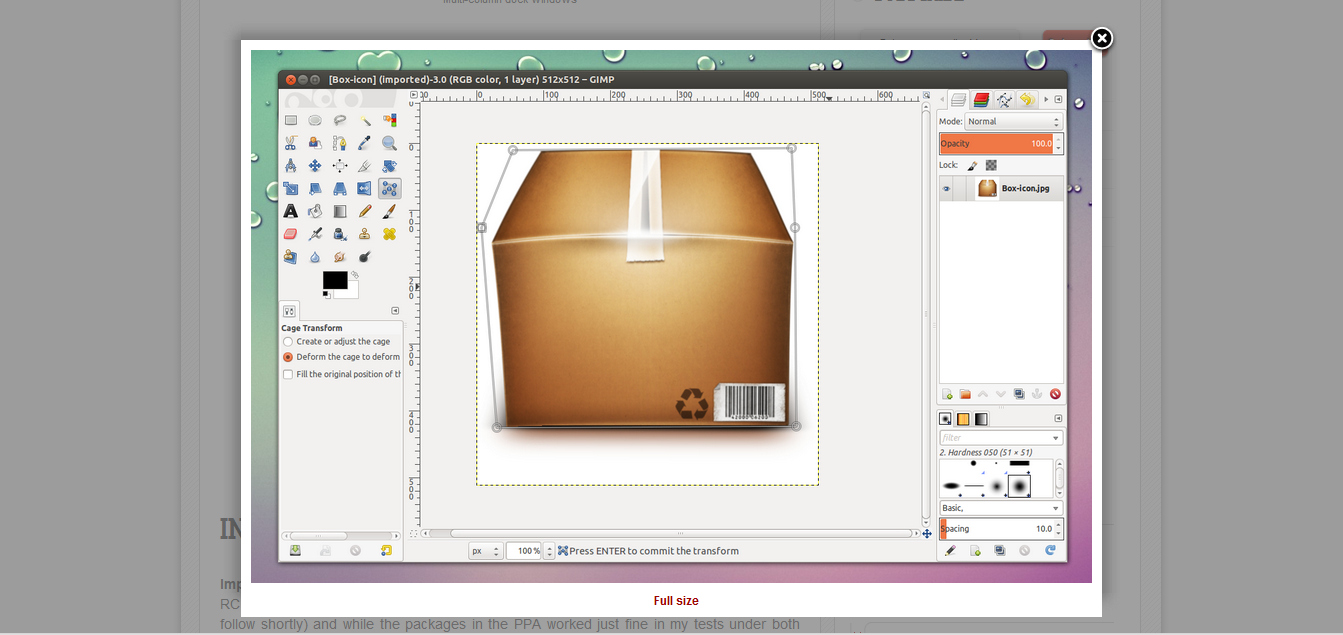
  • New Tool : Cage transform which maes it possible to easily warp parts of objects using an adjustable user-defined polygonal frame && more n more