Showing posts with label Customization. Show all posts

Thursday, March 28, 2013

Gnome 3.8 released

Gnome 3.8 released
Finally it is not ever stopping the major updates of any Linux platforms. Here the most favourite Gnome is upgraded to 3.8 with great new features. You will be happy with these features:
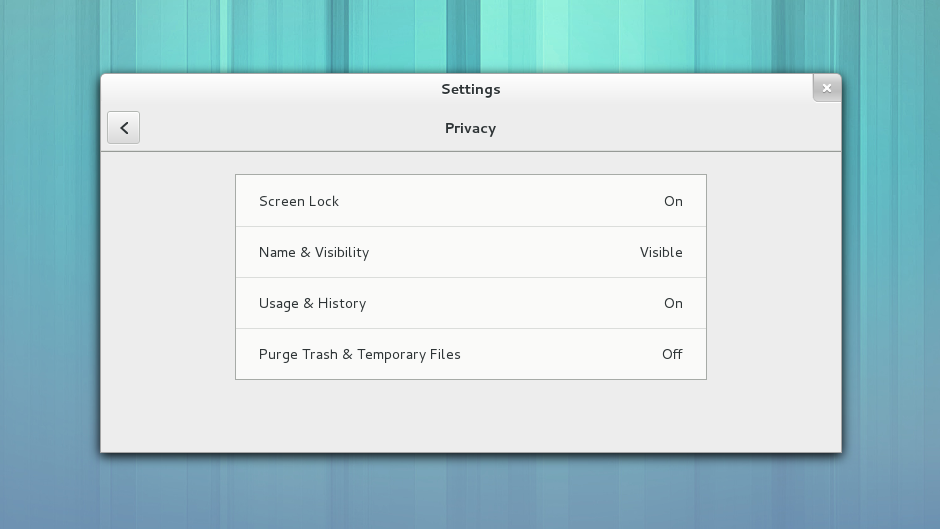
  • New Settings Panes for Privacy & Notification
  • New ‘GNOME Classic’ mode
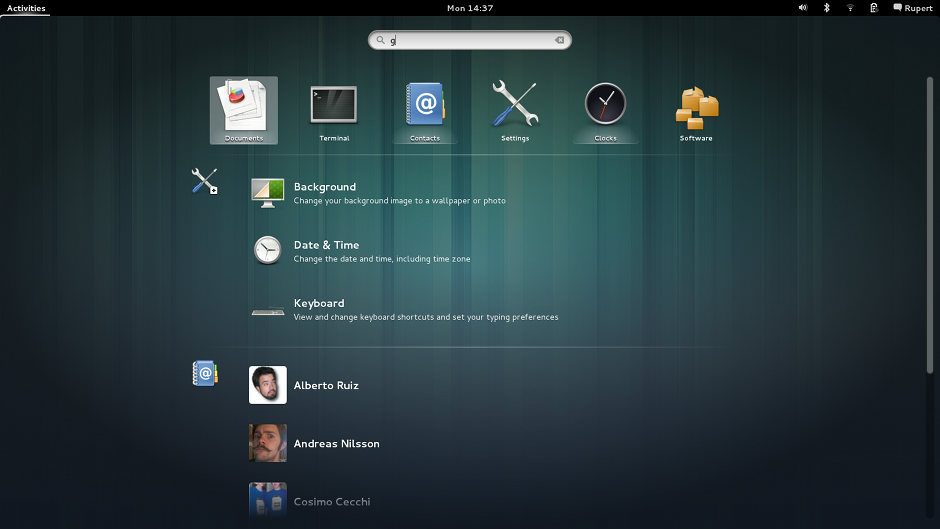
  • Revamped Search features in Activities Overview
  • New App Launching
  • Improved default apps
  • Two new ‘Preview’ Apps – Weather and Notes
Only bad news for now is that it will be easy get 3.8 immidiately. I asked Satya last night & it is going to be work best with Ubuntu 13.04 not in 12.10. Though official release is tied up with Gnome 3.6 we can use it anyhow seamlessly. 
Application Launching 
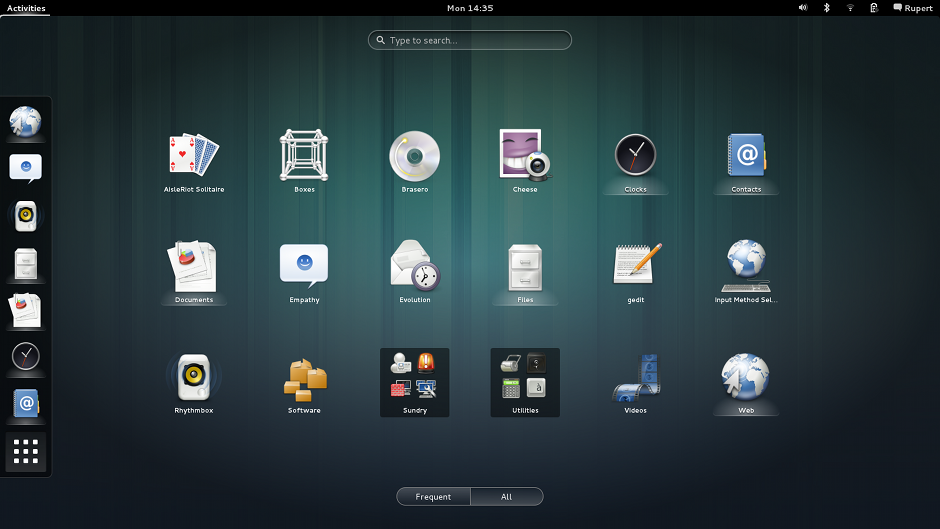
Search
Privacy & sharing
Clocks

Improved Animation Rendering
Classic mode

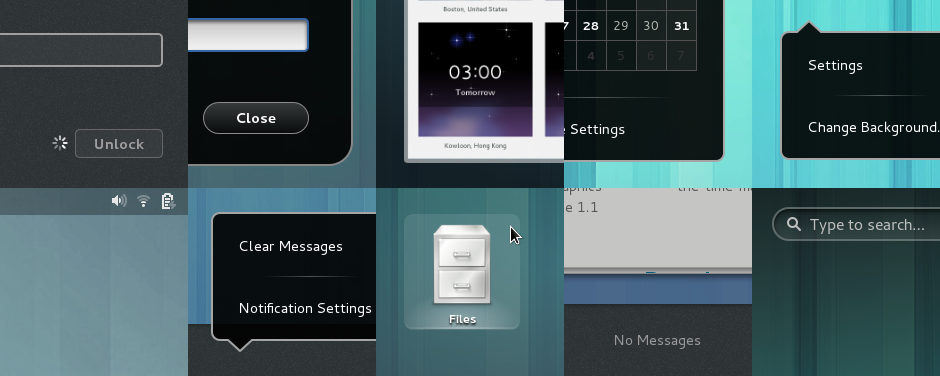
Details: GNOME 3.8 includes a huge number of smaller bug fixes and enhancements. Many details have been addressed to give a more polished experience, including new animated transitions, improved visuals and usability fixes. Many of these improvements were made as a part of the Every Detail Matters initiative, which fixed nearly 60 bugs during the 3.8 development cycle
Input methods 
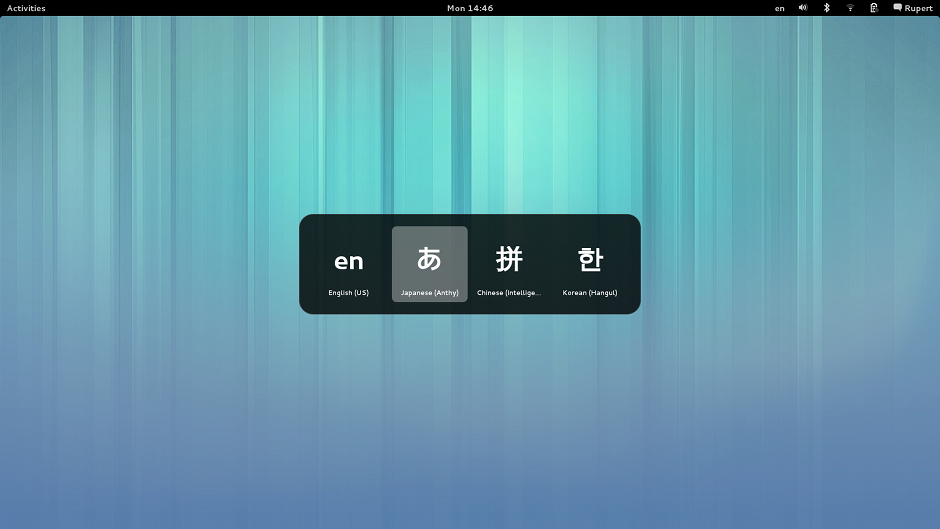
Here all above I provided only screenshots as people used to Gnome will get it instantly, but for all in details go to the official release site

Sunday, January 20, 2013

Orion GTK3 theme: New constellation in Gnome world

Orion Gtk3

Orion GTK3 theme by Satya is probably the best light theme having proper support for Unity. It supports Gnome Shell, Unity, Pantheon, XFCE and Openbox. The theme is compatible with GTK 3.2 onwards and uses the Unico engine also comes with a modified Boomerang Metacity. It also includes a GTK 2.0 theme using Murrine engine. 

The theme has been updated recently bringing even better integration. New changes include rewrite of mutter and metacity themes to fix roundness and border issues, fix for text color in system settings, fixes to fallback mode panel and removal of  pixbuf engine dependency.
To install Orion Theme open Terminal and copy the following commands :
  • sudo apt-add-repository ppa:satyajit-happy/themes
  • sudo apt-get update
  • sudo apt-get install orion-gtk-theme

The finest Gnome shell theme ever: Elegance colors

Elegance colors

Elegance is a clean and dark theme for Gnome Shell. It is a chameleon theme for Gnome Shell 3.6/3.4. which changes colors with Gtk theme colors and with current wallpaper or you can define color by yourself for this theme (it uses imagemagick to get color). It also comes with a GUI to customize various other aspects of the theme.
Besides the option to export a customized theme, Elegance Colors 0.3 also brings more customization options: set gradient size, transition duration and box shadow. Also, in the new version, theme changes are applied instantly.
To use the new "Export theme" option, open Elegance Colors Preferences and from the GMenu, select Export theme. The theme will be exported to a .zip file - don't install it using GNOME Tweak Tool because it will be installed to a location where it doesn't work. Simply extract it to ~/.themes and you'll have your new, working custom theme.
To install Elegance-Colors theme on Ubuntu/Linux Mint (Press Ctrl+Alt+T) and copy the following commands in the Terminal:
  • sudo add-apt-repository ppa:satyajit-happy/themes
  • sudo apt-get update
  • sudo apt-get install gnome-shell-theme-elegance-colors

Friday, December 7, 2012

Get classic theme back in your Windows 8

Windows classic theme
In some of the low end  machines people are used to be with the previous Windows classic theme which is not available in the latest edition of Windows. Here I like to recommend that using classic theme will enhance the performance always 18-25 % than by using the default or any kind of personalized theme. There is availability of other contrast theme in Windows 8 but not the regular classic theme. 

Hence we here get a solution for it. A deviantart user found us a theme for us which can be run under Windows 8. The best thing about having that is that you are not required to edit or replace original system files to get classic theme installed & also it can be used in both the 32 bit 64 bit versions. Here you just follow some of the steps : 
  • Download the classic theme
  • Extract the file anywhere and then copy it to the following path : C:/Windows/Resources/Ease of Access Themes folder
  • Do a right-click action on desktop, after that click Personalization to open Personalization window
  • To switch back use the Personalization window & select any other themes from there.         

Monday, November 12, 2012

Create your own Chrome theme in minutes


Usually we go for custom theme and search in Chrome Web Store but here is an extension available to create your Google themes in minutes. Pick your own background image & colors and have it as all yours. Follow some screen shots down here.

Go to the extension and launch it : 


Sunday, August 12, 2012

Automatically changing wallpapers on Ubuntu


I was  meant to have a good collection of wallpaper from my friend Satya & tried to put them all scrolling in my Ubuntu desktop, searching for a while for this kind of program which could automate the changing of wallpapers on a Ubuntu Machine. I finally did find the program tonight. It’s called wallch. Open the terminal and type or search it in synaptics.

$sudo apt-get install wallch
Now when the program the installed run it and add your images folder or certain random images you would like to cycle through on desktop. It’s pretty feature rich.
Pro’s Include :
    + Changing wallpaper choosing images randomly
    + Change wallpaper in random time (2-20min)
    + Live earth wallpaper which works according to your Time Format
    + Automatic settings for startup

Friday, August 3, 2012

Install Android 4.1 Jelly Bean Theme For Ubuntu 12.04/Linux Mint 13

The most elegant desktop customs charm the market now-a-days with Gnome-shell desktop environment. And the GTK3 as well as Gnome-shell theme are the flavors of this environment. Here
GtjDroid (Gtk & Gnome Shell)
GtkDroid is a new GTK3 theme inspired by the new Android 4.1 Jelly Bean OS. The theme is compatible with both Unity and Gnome Shell. It is compatible with Ubuntu 12.10/12.04/11.10 and Linux Mint 13 or older.

GtkDroid Installation :
The theme is available in two different styles (dark & light), you can install them all with these commands

sudo add-apt-repository ppa:upubuntu-com/gtk3

sudo apt-get update
sudo apt-get install gtkdroid


To enable the default style, run these commands :


gsettings set org.gnome.desktop.interface gtk-theme 'Jellybean-GTK'
gconftool-2 --set --type string /apps/metacity/general/theme 'Jellybean-GTK'

To enable the light version of GtkDroid, run these commands :
gsettings set org.gnome.desktop.interface gtk-theme 'Jellybean-GTK-Light'
gconftool-2 --set --type string /apps/metacity/general/theme 'Jellybean-GTK-Light'

Monday, March 26, 2012

Ubuntu : KFaenzamod One of the most liked Icon theme


Faenza is the bestest Icon pack for Linux ever. But some of the modified versions also get popularity in other platforms like KDE which is named as KFaenza. Now the latest updates released which also include support for Ubutnu in its primary desktop environments like Unity, Gnome-shell, Cinnamon etc. KFaenzamod installation :

Open the terminal (Ctrl+Alt+T) and issue the following commands:
  • cd /tmp && wget -O kfaenzamod.zip http://goo.gl/lYffm
  • unzip kfaenzamod.zip
  • mkdir ~/.icons
  • for i in KFaenzamod*.tar.gz; do tar xvzf $i -C ~/.icons; done
To enable KFaenzamod (light), run this command:
gsettings set org.gnome.desktop.interface icon-theme 'KFaenzamod'

To enable KFaenzamod (dark), eun this command:
gsettings set org.gnome.desktop.interface icon-theme 'KFaenzamoddark'

Saturday, March 24, 2012

Minty : Bestest Cinnamon theme ever

Dominance of Linux Desktop environment reveals many diversity in the Art-era. In past few years a lots of Desktop environments have been released. Like  Razor QtGnome-shell , UnityCinnamon etc have shown the remarkable changes. And to claim the best among themselves they need the help of the users who will promote their dominance by working over that. And the Themes of this Desktop environments are the most important factor of popularity.
Cinnamon with its Minty theme
Now-a-days after Gnome-shell the one who is accelerating its popularity is none other than Cinnamon. This Desktop environment has been released by Linux Mint Distributor. The features are almost same that of Gnome-shell, still a lot of advantages are there over Shell Desktop. Here  Satya has invented & me discovered it in these days, it's a very elegant theme  & there is no match with others as it is the superior one. And  it is none other than Minty. There is not a single discriminatory point & you have to go on with it. Watch-out the screen-shots below...
sudo apt-add-repository ppa:satyajit-happy/themes
sudo apt-get update && sudo apt-get install cinnamon-theme-minty 
 
In the first screenshot there is a Conky in the desktop at the left bottom corner which is a customized desktop & not given preinstalled in Cinnamon...

Thursday, March 15, 2012

Windows get the most beautiful music player ever : Amarok

Amarok 
Music is the only soul that survives inside every heart. We use  many kinds of music players to play the rhythm & beat. Market avails a lot of music player but we go for the most reliable one. Choosing a player varies with the user depending upon mood & comfort. Some popular music players are available throughout various OS like i Tune in Mac, Banshee or Rhythm-box in Ubuntu/Fedora/Open Suse etc., media player in Windows. But the most beautiful one is featured with KDE that is none other than Amarok. The graphical interference is very eye-catchy while the features are amazing.
But the most awaited surprise to Amarok user is that it's now available for Windows, so friends again rediscover Your Music. The  features provided by Amarok, Take a look

Tuesday, March 13, 2012

CustoPack: Transform Windows to the best look you ever had.


CustoPack Tools
Windows Desktop environment that is given by default is a good surface to work on. But as repetitions go high it is not that much comfortable as it was earlier. So we search for a good theme as we do in our Handset. Often people go for looking into Internet for more themes compatible with Windows. Here we get some of the Windows themes but this is for enhancing the aero effects only which is not able to fulfill our aspects.  Some users need to transform their whole Desktop into a very new kind visualization. Unfortunately there is no other option to go for a superb desktop environment like any other OS as KDE, Gnome Shell, Unity, Mac Desktop, Android, Razor QT, etc. as we are highly satisfied with Windows because of its performance as well as user friendly support and always migration to other OS is not possible by all users.
Still there are many ways to resolve all the needs. A very easier and efficient way to get all of these is been solved by CustoPack. CustoPack is a customization tool that completely transforms the Windows Desktop environment to remarkable changes. Here starting from Visual effects to the Icon Pack everything is modified in a single application tool.
  • Download CustoPack  (installation file) & Install to your system with following common Installation Widgets.
  • Now download the required CustoPack Tools from its gallery.
  • After completion of downloading of the packages, install them with required options
  • Now reboot your system to take effects on your Desktop.
12

34
N.B.
  • Sometimes while installation it may be crashed so do not bother about it.
  • Close all the running applications and reinstall the programme.
  • At times when it has been crashed and also is not closing its window though pressing to the close button, Start the task manager and kill it from there & reinstall it.

56

                        78

Saturday, April 16, 2011

Breathe OXYGEN In Windows 7 Through KDE 4

All new developed and most beautiful look in the desktop environment is now also available in tour windows 7. The all new featured programme that can be enjoyed in this version .
i.e. screenshot
The lightweight & popular audio player "Amarok" and the file manager "Dolphin" completes the best part of this feature. Also availability of some many small games.abrowesr named "Konqurer" also helps you to browse through Internet.And finally the popular "Oxygen" theme make you spicy in this windows' KDE.
Amarok audio player
                                               Dolphin file manager(with Oxygen theme)
Installation :
There is no such setup file(.exe) avilable for direct installation. So have the KDE Installer first.
Download here. Select the latest version of installer and download. Notice that you have enough space in your primary partition. Because it will take near about 1 GB .