Showing posts with label Linux. Show all posts

Monday, April 29, 2013

Remove guest session from UBUNTU

Remove guest session from login screen
Many times we prefer more personal with our ubuntu computers. Also there are required situation which needs to be disabled the guest session which has given by default. In windows we have to switch on the guest account or have to create it but it is been by default in ubuntu. Hence this simple read-out will help you to disable the guest session.

Open the terminal and paste the below line

sudo gedit /etc/lightdm/lightdm.conf


When the file will open make some edit there, add this particular  line at the end of the text file

allow-guest=false


Enjoy it all !!

Thursday, April 11, 2013

Remove duplicate items from the Gnome application section

By mistake I make some changes to important system files to bring transparency effects once, installing Gnome shell 3.6 in Linux Mint . I don't remember exactly what i did but due to this all the icons in application area of Gnome-Shell were appearing twice. 
Hence here are some of the steps may help you resolve the problems:
  • Open /var/lib/menu-xdg/applications/menu-xdg from that window. 
  • All the files have their name with the extension .desktop
  • Now open terminal and change the directory to that particular drive
  • Type sudo rm *.desktop
  • Open /usr/share/applications delete duplicate icons or unnecessary icons from here
 *In any case files will have name something like this "X-Debian-Games-Toys-oclock.desktop" (This file will be shown as oclock application in Gnome shell). Delete the files having extension .desktop  whose icons are displayed twice

Tuesday, April 9, 2013

Upgrade Ubuntu 12.10 to 13.04 easy way


If you want to upgrade, not install a fresh system off of a DVD or USB device, you can use this method suggested on the #ubuntu+1 IRC channel:
  • sudo sed -i 's/quantal/raring/' /etc/apt/sources.list
  • sudo apt-get update
  • sudo apt-get dist-upgrade
The easiest way to update from 12.10 to 13.04, just open the terminal and type this:
  • sudo do-release-upgrade -d
Ubuntu 13.04 is in beta for now. Hence it is still recommended to go through your own risk.

Thursday, March 28, 2013

Gnome 3.8 released

Gnome 3.8 released
Finally it is not ever stopping the major updates of any Linux platforms. Here the most favourite Gnome is upgraded to 3.8 with great new features. You will be happy with these features:
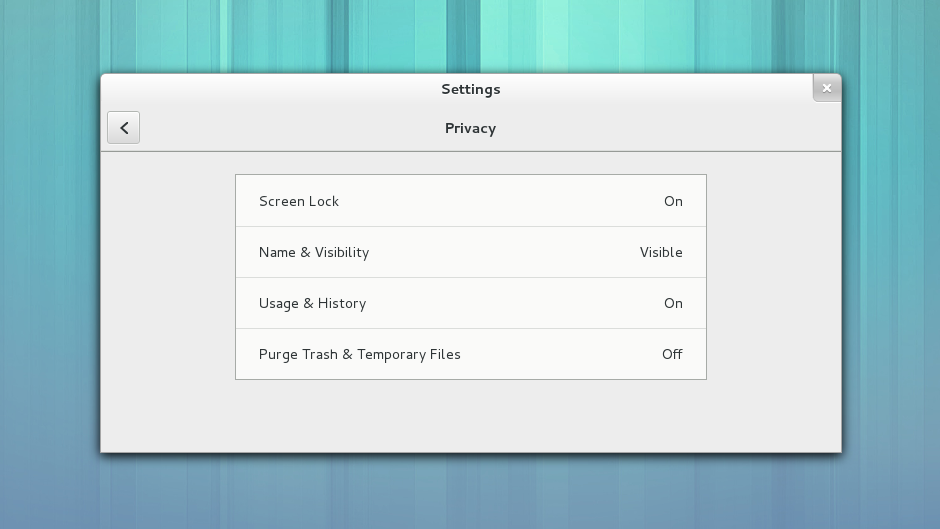
  • New Settings Panes for Privacy & Notification
  • New ‘GNOME Classic’ mode
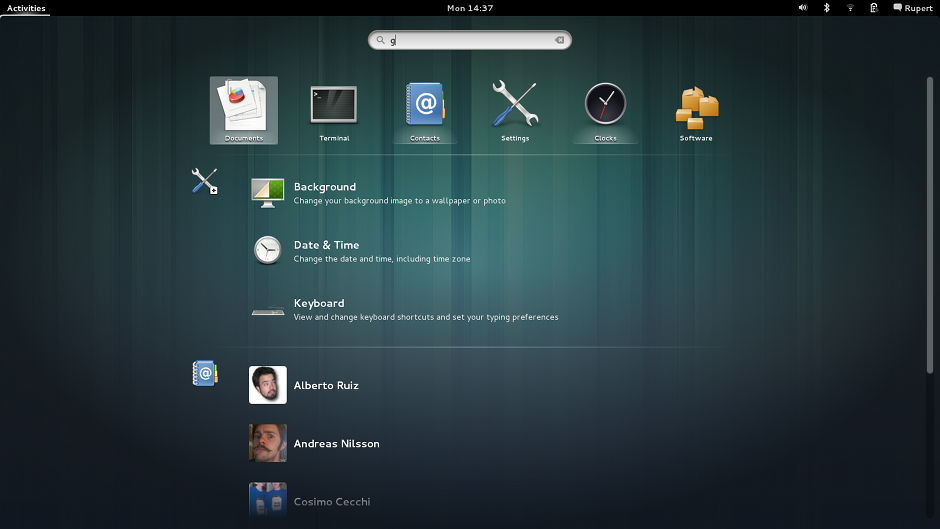
  • Revamped Search features in Activities Overview
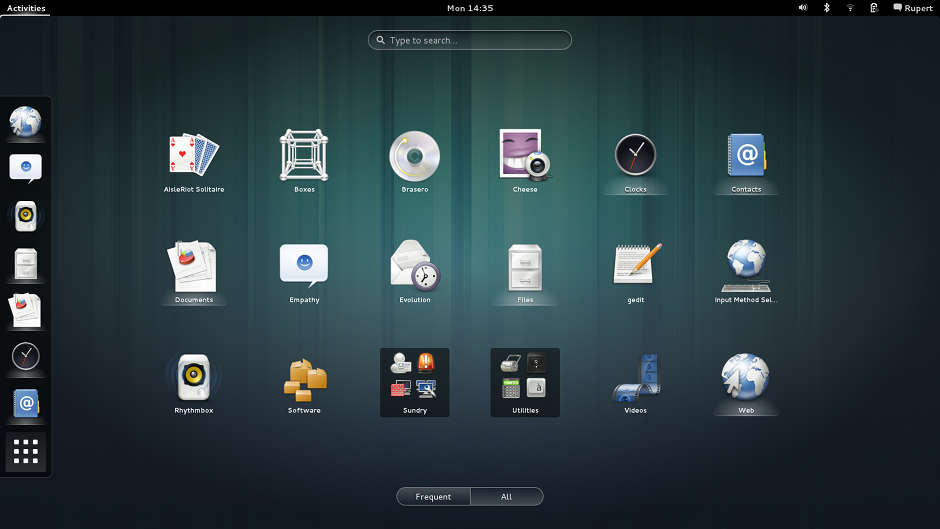
  • New App Launching
  • Improved default apps
  • Two new ‘Preview’ Apps – Weather and Notes
Only bad news for now is that it will be easy get 3.8 immidiately. I asked Satya last night & it is going to be work best with Ubuntu 13.04 not in 12.10. Though official release is tied up with Gnome 3.6 we can use it anyhow seamlessly. 
Application Launching 

Search

Privacy & sharing
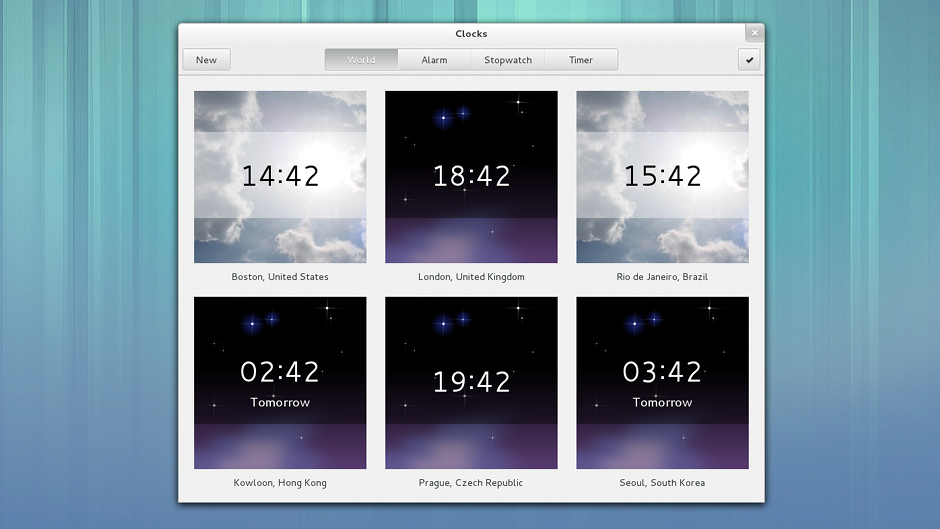
Clocks
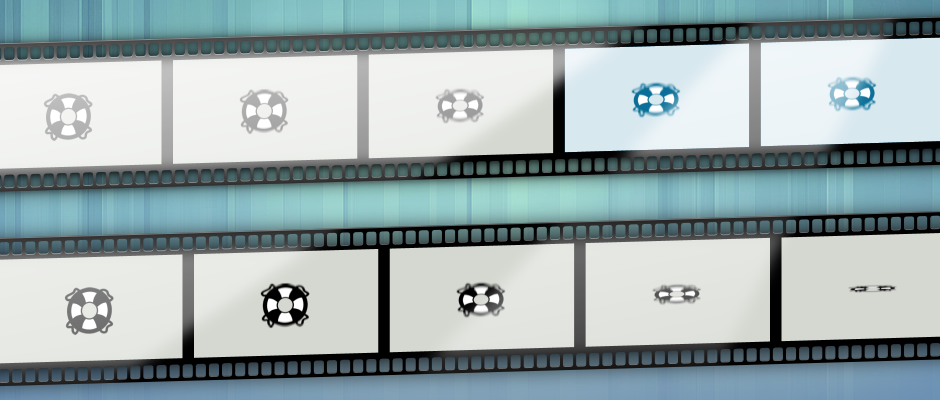
Improved Animation Rendering
Classic mode

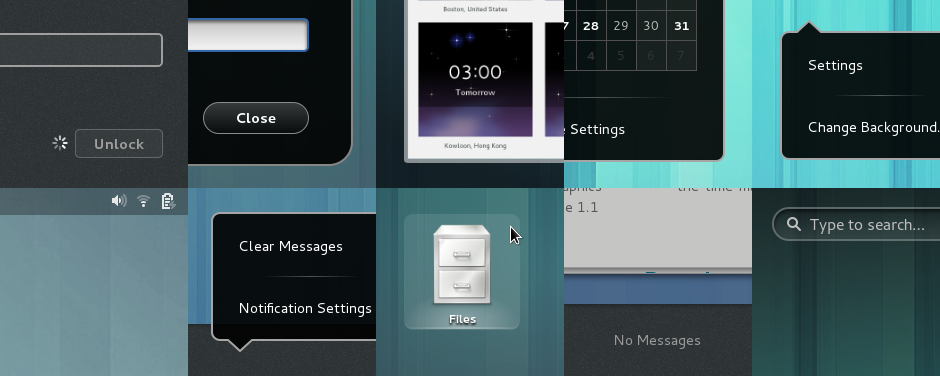
Details: GNOME 3.8 includes a huge number of smaller bug fixes and enhancements. Many details have been addressed to give a more polished experience, including new animated transitions, improved visuals and usability fixes. Many of these improvements were made as a part of the Every Detail Matters initiative, which fixed nearly 60 bugs during the 3.8 development cycle

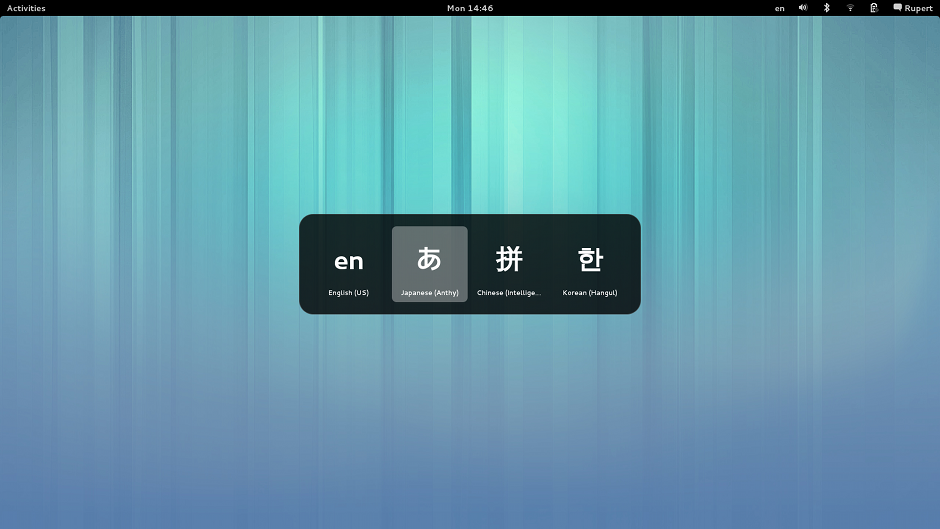
Input methods 
Here all above I provided only screenshots as people used to Gnome will get it instantly, but for all in details go to the official release site

Wednesday, March 27, 2013

How to forge ensures OpenSUSE 12.3 as a complete replacement for Windows


openSUSE 12.3 was released on Wednesday, March 13, 2013. As per the latest release, this brings the best of Free Software in the familiar openSUSE package: stable and complete.

12.3 can be downloaded from software.opensuse.org. Also available is a German 12.3 boxed retail edition. The retail edition boasts a complete printed user manual, physical installation media, and includes exciting money-off vouchers. 
You can set up an OpenSUSE 12.3 desktop that is a full-fledged replacement for a Windows desktop, i.e. that has all the software that people need to do the things they do on their Windows desktops. The advantages are clear: you get a secure system without DRM restrictions that works even on old hardware, and the best thing is: all software comes free of charge.


Saturday, March 9, 2013

NTM: Useful tool for limited pay-plan of Internet users


Network Traffic Monitor
NTM (Network Traffic Monitor) is a monitor of the network and internet traffic for Linux.
Features: 
  • Choice of the interface to monitoring.
  • Period to monitoring: Day, Week, Month, Year or Custom Days. With autoupdate.
  • Threshold: Autodisconnection if a limit is reached (by NetworkManager).
  • Traffic Monitoring: Inbound, outbount and total traffic; Show the traffic speed.
  • Time Monitoring: Total time of connections in the period.
  • Time Slot Monitoring: Number of sessions used.
  • Reports: Show of average values and daily traffic of a configurable period.
  • Online checking with NetworkManager or by "Ping Mode".
  • The traffic is attributed to the day when the session began.
  • Not need root privilege.
  • Not invasive, use a system try icon.
NTM is useful for the people that have a internet plan with a limit, and moreover the exceed traffic is expensive.

Mobile Media Converter


Mobile Media Converter
The Mobile Media Converter is a free audio and video converter for converting between popular desktop audio and video formats like MP3, Windows Media Audio (wma), Ogg Vorbis Audio (ogg), Wave Audio (wav), MPEG video, AVI, Windows Media Video (wmv), Flash Video (flv), QuickTime Video (mov) and commonly used mobile devices/phones formats like AMR audio (amr) and 3GP video. iPod/iPhone and PSP compatible MP4 video are supported. Moreover, you can remove and add new formats or devices through the internet.

An integrated YouTube downloader is available for direct downloading and converting to any of these formats. Popular sites such as Dailymotion, Photobucket videos, blip.tv, Soundcloud and Youku are supported too. You can trim your clips for ringtone creation or any other purpose and crop your videos for removing up/down black bars or other unwanted parts of the image. Additionally, embedded subtitles can be encoded onto the video for watching movies or shows with subtitles on devices that does not supports them. Finally, a built-in DVD ripper is available to transform your own DVDs to any of the supported formats.

The program has a very easy-to-use and simple GUI (Graphical User Interface) that helps even the most amateur user. Most of the times, the only data that you must enter is the input file(s) or just drag 'n' drop the input file(s)! The 3GP and AMR formats are used by mobile phones for MMS, video and sound recordings, etc.

Monday, February 18, 2013

Rhythmcat: Ultra-light music player for LINUX

Rhytmcat
The default music payer of all the Linux platforms are little bit memory exhaustive applications  but here we have discovered one of the ultra light music payer viz.  Rhythmcat which will run only on 7.4 MB at max. while Banshee & Rhythmbox take more than 35 MB. 

It can be used as a normal music player, and it can also show lyrics in a single window, or even on the desktop. It can help you mix your voice into the original music. And this player can help you convert the format of your music files, or cut/join your music. 

Get Rhythmcat here. (The donload size is less than 1MB, get started now). In the main page just go through the left pane & checkout the download options.

Saturday, February 16, 2013

Ubuntu 12.04.2 LTS released

Ubuntu 12.04.2 LTS
Colin Watson has announced the release of Ubuntu 12.04.2, the latest update of the distribution's current long-term support version: "The Ubuntu team is pleased to announce the release of Ubuntu 12.04.2 LTS (Long-Term Support) for its Desktop, Server, Cloud, and Core products, as well as other flavours of Ubuntu with long-term support. 

To help support a broader range of hardware, the 12.04.2 release adds an updated kernel and X stack for new installations on x86 architectures, and matches the ability of 12.10 to install on systems using UEFI firmware with Secure Boot enabled.

As usual, this point release includes many updates, and updated installation media has been provided so that fewer updates will need to be downloaded after installation.


Kubuntu 12.04.2 LTS, Edubuntu 12.04.2 LTS, Xubuntu 12.04.2 LTS, Mythbuntu 12.04.2 LTS, and Ubuntu Studio 12.04.2 LTS are also now available. For some of these, more details can be found in their announcements:


Celebration SALE: Steam for Linux upto 80% discount

Steam for Linux 

Valve’s Steam for Linux client is now available to install on Ubuntu directly from the Ubuntu Software Center. The app, which has been in various beta stages since November 2012, is available on both Ubuntu 12.04 LTS and Ubuntu 12.10 on either 32bit or 64bit installs.

Although the client itself can be installed (and uninstalled) from within the Ubuntu Software Center all future updates to the app will be handled by the Steam client’s built-in updater, linked to the official Steam for Linux repository.

Up to 80% Off Sale

  • To mark the release, gamers can save between 50-80% off the price of every Steam Linux title – of which there are over 50 to choose from – until Thursday February 21st.
  • Don’t forget to join the OMG! Ubuntu! group on Steam to meet fellow Linux gamers, share gaming tips, and take part in custom group games.
You'll find a complete list of games available in this Steam for Linux sale @http://store.steampowered.com/sale/linux_release/

Ubuntu Phone Downloads To Be Released Next Week


Ubuntu Phone Images released
Installable Ubuntu Phone images for the Galaxy Nexus and Nexus 4 handsets will be available to download from next week, Canonical have today announced. From February 21st two pre-compiled images will be available for anyone with either supported handset to download. The preview will allow fans and app developers alike the chance to get to grips with the Ubuntu Phone experience ahead of its official release later this year. 
But if the thought of ‘flashing’ your phone scares you then relax: Canonical have got you covered. Accompanying the preview will be a desktop app that downloads, updates and install Ubuntu Phone on to supported handsets. It’s likely that the tool will be similar to the 'Nexus 7′ installer  released by Canonical last October, which enabled owners of the Google Nexus 7 to quickly install Ubuntu on to their device.
Details
Details on install Ubuntu Phone, and the devices supported, will be listed at wiki.ubuntu.com/TouchInstallProcess in the coming week.

Fedora Utils: Tweaks Fedora head to bottom


Thursday, February 14, 2013

Ubuntu for mobile: a Linux OS fights to break into the smartphone market

Ubuntu Phone Arrival
One of Linux's biggest players is heading to mobile. The new Ubuntu has a gesture heavy interface and will be entering the market amid a number of mature operating systems. We have reservations about how it will fair in the crowded mobile market but are interested to see how Canonical's open­source OS develops. Follow along here as Canonical works to bring mobile Ubuntu into consumers' hands. 

MAJOR UPDATES 
  • The Ubuntu phone has a speed problem
  • Hands-­on with Ubuntu's brand­new, gesture­based phone OS

Package Converter (GUI) - Ubuntu/Linux Mint

Package Converter
We use different platforms of Linux but the objective is almost same to conclude. Hence the various distribution packages i.e. DEB, RPM, PKG, TGZ and more make problem to us finding them. But here we find out a a frontend GUI For alien to convert between various distribution packages named PACKAGE CONVERTER. The application is written in Realbasic and Python and it supports all alien parameter options.

Installation procedure for Ubuntu 13.04/12.10/12.04/11.10 & Linux Mint 14/13/12 :

sudo add-apt-repository ppa:upubuntu-com/ppa 
sudo apt-get update 
sudo apt-get install package-converter

Tuesday, January 22, 2013

Upgrade Fedora 17 To Fedora 18 With FedUp

Upgrade F18 with FedUp
Every time with a new release of Fedora, the anxiety goes up along with that we have to mask the troubles of formatting our system that all the settings & applications are to be added newly. But here we resolve your issue without format, how you can upgrade your Fedora 17 system to Fedora 18 with the help of the Fedora Updater (FedUp).

Please make sure that the system that you want to upgrade has more than 600 MB of RAM. The following commands to be executed in the terminal with root privilege (Use su). 
upgrade rpm> install  latest updates> clean the yum cache. 
  • yum update rpm
  • yum -y update
  • yum clean all
  • reboot
Now upgrade through FedUp:
  • yum install fedup
  • fedup-cli --network 18
  • reboot

    From the boot menu, select System Upgrade (fedup). Please be patient, during the reboot, the upgrade is being performed. This can take quite a long time. 

Monday, January 21, 2013

Sunflower: Improved way of data transfer - Ubuntu

Sunflower: File Manager

The usual cast of difference between Windows & Linux users is that the file manager of Window is always superior than any of the Linux based managers. Hence the data transfer is a major problem in Linux as it carries much time as compared Explorer of Window. But here we found an alternative to keep our good work in line.

Sunflower is a highly customizable Linux file manager that supports dual panes and plug-ins. It can be integrated easily in Gnome-based desktops. This amazing file manager has been updated to version 0.1a-51 which brings these new changes:

  • Performance improvements for the copy function (the file manager will now check available space before starting the copy operation)
  • Fixed a bug that causes entries to be duplicated in the mount manager
  • Various bugfixes
To install Sunflower in Ubuntu 12.10/12.04 and Linux Mint 14/13 or older, open the terminal & run :

  • sudo add-apt-repository ppa:atareao/sunflower 
  • sudo apt-get update 
  • sudo apt-get install  sunflower

Sunday, January 20, 2013

Orion GTK3 theme: New constellation in Gnome world

Orion Gtk3

Orion GTK3 theme by Satya is probably the best light theme having proper support for Unity. It supports Gnome Shell, Unity, Pantheon, XFCE and Openbox. The theme is compatible with GTK 3.2 onwards and uses the Unico engine also comes with a modified Boomerang Metacity. It also includes a GTK 2.0 theme using Murrine engine. 

The theme has been updated recently bringing even better integration. New changes include rewrite of mutter and metacity themes to fix roundness and border issues, fix for text color in system settings, fixes to fallback mode panel and removal of  pixbuf engine dependency.
To install Orion Theme open Terminal and copy the following commands :
  • sudo apt-add-repository ppa:satyajit-happy/themes
  • sudo apt-get update
  • sudo apt-get install orion-gtk-theme

The finest Gnome shell theme ever: Elegance colors

Elegance colors

Elegance is a clean and dark theme for Gnome Shell. It is a chameleon theme for Gnome Shell 3.6/3.4. which changes colors with Gtk theme colors and with current wallpaper or you can define color by yourself for this theme (it uses imagemagick to get color). It also comes with a GUI to customize various other aspects of the theme.
Besides the option to export a customized theme, Elegance Colors 0.3 also brings more customization options: set gradient size, transition duration and box shadow. Also, in the new version, theme changes are applied instantly.
To use the new "Export theme" option, open Elegance Colors Preferences and from the GMenu, select Export theme. The theme will be exported to a .zip file - don't install it using GNOME Tweak Tool because it will be installed to a location where it doesn't work. Simply extract it to ~/.themes and you'll have your new, working custom theme.
To install Elegance-Colors theme on Ubuntu/Linux Mint (Press Ctrl+Alt+T) and copy the following commands in the Terminal:
  • sudo add-apt-repository ppa:satyajit-happy/themes
  • sudo apt-get update
  • sudo apt-get install gnome-shell-theme-elegance-colors

PDFsam: Merge and Split pdf documents on Linux

PDFsam
PDF Split and Merge is a complete opensource application and easy to use tool to merge and split pdf documents. Console and GUI versions are available. The GUI is written in Java Swing and it provides functions to select files and set options. It's made over the iText library. This application has been developed by Andrea Vacondio.


One of the common file extension on the computer is Portable Document Format (PDF). It runs on multi-platform operating system and application. As the document extension, PDF can include texts, pictures, and some additional information in one format document. PDF help people with different operating system to share or exchange the files without any challenges of compatibility. Using PDF people don't need to convert document files into other extension to be opened on different word processor.  


Merging, extracting and spliting PDF document is another common users need. However, people sometime need to split a PDF document into another one. in other case, people need to extract some pages into a different file. on the MIcrosoft Windows, Adobe Professional is the most used application to run this function. How about the similiar application on the Linux?

Here is your solution PDFsam.

Methods of installation: (Any of the below option is yours)
  • Simply put the command on your terminal sudo apt-get install pdfsam
  • Search through 'Synaptic' and go for general installation process.
  • Here is your .deb file, after download run this command on the corresponding directory sudo dpkg -i pdfsam_2.2.1.deb
  • You can go more ease with launchpad.

Wednesday, December 12, 2012

Connect internet in Linux through Nokia mobiles (No Nokia Suite is required)

Usually there is a notion that Linux environment is not so user friendly than that of Windows. But here are some sorts of example that Linux is always a better environment to work with. Often we have to install some programs in order to get connected with Internet whether it may be through a USB modem or any piece of mobile. As before the Samsung, Nokia was the leading runners of cellular world, here is our concern to get connected with an easier way. 

There is no need of any Nokia suite. In Linux you can connect internet with putting some lines in your terminal. But the first thing is to connect your PC with internet from any other source so that initially some small files can be downloaded. Here are the steps to be followed :

  • Open Terminal and type sudo apt-get install wvdial 
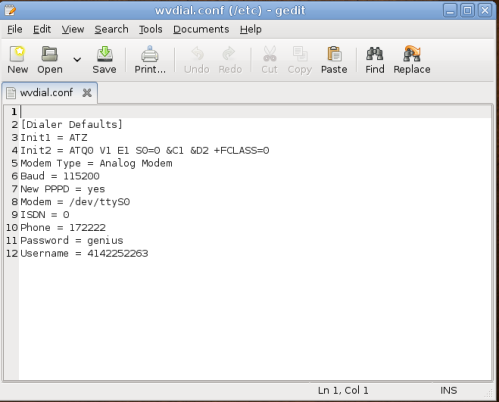
  • Now after putting your password and instaallation completion you go thruogh the following commands sudo gedit /etc/wvdial.conf
Now replace existing text with the following :
[Dialer Defaults]
Init1 = ATZ
Init2 = ATQ0 V1 E1 S0=0 &C1 &D2 +FCLASS=0
Modem Type = USB Modem
Baud = 460800
New PPPD = yes
Modem = /dev/ttyACM0
ISDN = 0
Phone = *99#
Password = A
Username = B
Stupid Mode = 1
  • Replace "A" & "B" from the above code your internet connection Password & Username. If there is no password necessary then leave the above code unchanged.
  • Save & close the editor.
  • Now plug in your data cable into your phone & run the following command from terminal each time you want to connect internet:  : sudo wvdial
  • Done! But if you fail to connect internet then do one of the following:
Unplug mobile cable, wait few seconds, plug again and run wvdial command
Or open /etc/wvdial.conf and replace Phone=*99# with Phone = *99***1#