Showing posts with label Internet. Show all posts

Thursday, June 13, 2013

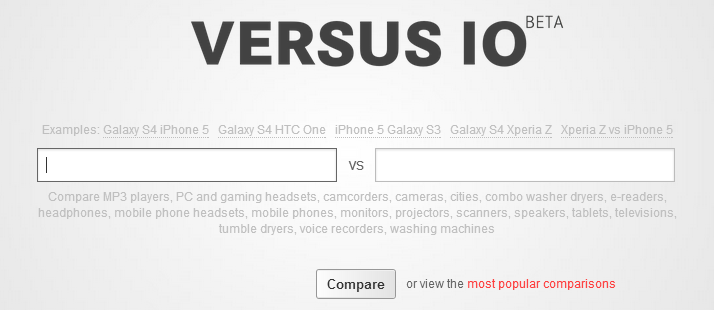
versusio.com : Cleanest & powerful comparison tool for your gadgets

versusio.com
People got all their decision into the internet face for investing their moneys on every electronics purchase. Hence the reason behind internet look out is for compare between items of same range in their budget. There are popular indices available i.e. online shopping sites for better comparison between gadgets. But still there are many problems available in store like: The most popular gadget may not be available in your country but you think that the review says in the website it is available, so your product range expels and the comparison got no value unless you dig more  on other online shopkeepers. For better result keep apart your price list, first of all check the product specification & overall idea will be a clear-shot product range. 
So the process starts with the target finding & lunch comparison.
It matters through brand, budget, features, portability etc. So you can't keep up all the things in your mind to compare the items. Hence so many popular online shopkeepers started 'compare list' like features.
  • But this exclusive post is for you people to clear the minds and make you click free and eyeball jammed together. The most cleanest & simplest comparison online tool is hiding within us i.e. versusio.com; you can compare any of these following gadgets from the most popular brands 
MP3 players, PC and gaming headsets, camcorders, cameras, cities, combo washer dryers, e-readers, headphones, mobile phone headsets, mobile phones, monitors, projectors, scanners, speakers, tablets, televisions, tumble dryers, voice recorders, washing machines

This tool will provide you the upper-hand of the comparative indents through 'Go for reasons' in numbers. It will ensure your product through clearly visible resizable images of the compared products in the sub-way.
The site has been approved through popular sites like TNB (The Next Web), lifeHacker, Techcrunch.
Check some of the tablet comparison screenshots below:


Hope our visitors will make some profit out of it ....thanks

Monday, May 20, 2013

Torch: Download your torrent files within the browser

Torch: a Chromium based browser
From the ocean of piracy, we draw so many files everyday for various purposes. But after selecting the torrent file it is not easy as downloading a meta-link through any download manager. Hence it requires a torrent client to be satisfied. Every time you use public computers it is not allowed to install clients over there.
This post will surely make you happy after finishing it up.
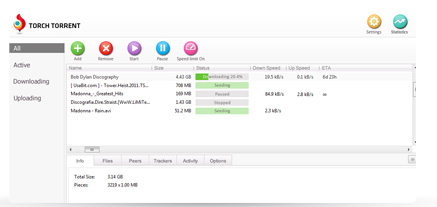
There is chromium based browser named as Torch. Available free as it is  a open source project. Torch  itself is a custom made unique flavored browser which enables torrent client within its body (Go to the screenshot). Features available in Torch
  • Power user of torrent client
  • Captures online streaming (Music & Video files)
  • Receives both magnet link as well as .torrent files
  • The downloading interface is quite friendly
  • Advanced tweaks can be manipulated as changing the priority level of files, no. of connection
  • The speed is as good as u torrent
  • Supports all the chrome extensions
All purpose browser which can be used both as torrent client & an advanced browser. Supports all the features which are been supported by Google Chrome. But one need to start up the browser which is not an issue for general torrent client.

Get your torch browser here. You can download it from an offline installer also here

Tuesday, April 30, 2013

Get all the minute to minute update from piratebay.se


We all search for anything new everyday, or getting updated of anything usual before. Hence waste much more time having searching them & at last there few times remain for read out them & almost no time in hand to capture them.
 Here Feedly the very good alternative to Google Reader will help us out by feeding us every update from the most popular & most pirated torrent site known as piratebay.se; as this torrent site has been declared as serving the most piracy than any other torrent sites till 2012.
  • First get the feedly app in browser which most preferred by you as it is all available for the famous browsers
  • The only thing you have to do is type exactly "thepiratebay" in the search box of feedly app
  • And then subscribe it
  • Everytime you get on to the internet stream check the updates that which files have been recently uploaded

No way you will suffice your eye that much of updation ..have fun friends ...be busy..

Monday, April 29, 2013

Cloud downloading of torrent files through put.io

cloud downloading of torrent files
This post will guide you for the downloading of torrent files through cloud. As the ocean of resources are torrent sites we often go visit for our files there, but it is not that easier to get downloaded those files as it depends upon various factors. And the most annoying is in public computers where our files are not cared. 
Let all the burdens being carried by these phenomenal site known as put.io ; previously there was another popular site  as torrific.com which has been shut down. And after lot a manipulating research I drained to a conclusion and here declaring put.io as the best among all.
Though there are still a lot of limitation are there; among them the 1GB limitation for 1 day is the greatest. But  it will stick to its performance always which is not guaranteed by others like boxopus, zbigz, bitlet.org, Quicktorrent. 
How to feed put.io

  • Login first then search for your file in a torrent site 
  • Most preferable sites are torrenthound.com, kat.ph, bitsnoop.com
  • Go to the add new files button
  • Copy the magnet link of the particular torrent and paste over it

That's all
If you are lucky you will get the files immediately & sometimes have to wait as the health of the torrent is not so good. 
The best thing is that you once feed put.io then leave it, automatically it will produce you a metalink which can be downloaded through any download manager. 
Also you can access unlimited plans by getting an premium account.

Monday, April 15, 2013

torrentHound.com updates the all new advanced interface with Magnet link feature

torrentHound.com adds magnet link 
As we people are doing sins every-time connecting to the network as a part of piracy deeds. Any thing we go for searching it will be the torrents which gonna provide us as a must. Here I'm talking about the most popular torrent site torrentHound.com which is somehow lagging behind piratebay & kat in the contents. But the seed ratio is always high as we know but the very feature we were missing with the magnet link availability. 

But the issue is closed by today that it facilitates both magnet link & .torrent files at the same line along with the seed & leech count. 

People must know which one to prefer whether it is a magnet link or .torrent file. I will explain very shortly that if you require the file immediately as per your necessity & connection speed always prefer magnet link. But if the file size is too large that it will not be completed at once then choose the .torrent file as it keeps the tracker & data information quite good. Also you can transfer your files along with the .torrent file to resume it in another device which is not possible in magnet links. If the file size so large then every time you reconnect it will take longer time for the checking the older downloaded files in case of magnet links while it will take fewer secs in .torrent files support.

Choose wisely and enjoy piracy :)

Wednesday, April 10, 2013

Google Chrome: Update Server not available (error 3) issue solved

The regular users who love chrome as their home always want to be with an updated notice like 'Google chrome is up to date.' But the problem is without proper installation of chrome there is another annoying notification comes "Update Server not available (error 3)". 
It happens because whenever we go for downloading the browser there is only the installer file all we get from the official website, hence we search for some offline installer. These offline installer don't belong to the mother channel so produces error 3. 
As a tip, I would advice you to avoid FileHippo or any other 3rd party hosting site,and whenever possible go for the direct source of a program. Here are the official links for Google Chrome, Google Chrome Beta , Google Chrome Developer and Canary build:


Friday, March 29, 2013

Instapaper : A simple tool to save web pages for reading later

Instapaer
All the time we go on browsing & the very thing we missed is saving the part of the page for later reading. But so many apps now resolve this issue, however here we find out an web app that will produce more easy option for saving as well as download the copies in various formats. We called this as a Instapaper. Down here something interested about this web app

Other export options
You can download an ePub doc of your list, or generate a printable list (if you are really old school), plus there’s an option to export a CSV file [link tk] if you are a digital hoarder like myself.
Tips, tricks and organization
Instapaper offers folders to organize your links. Really, if you use Instapaper daily they shouldn’t be necessary. But if you really want to get organized, you can separate reads into work and fun, or something along those lines. Archiving an item actually removes it from a folder and drops it into the one massive Archive list, so I hope it’s clear that Instapaper is designed for short-term storage, not a long-term bookmarking tool. Here are some handy tips once you get going:
  • Send long emails and newsletters to your secret Instapaper email address to have IP render them nicely and allow you to read them at your leisure.
  • The measly $1 a month allows full text searches for saved items, which is totally worth the money if you use Instapaper for research.
  • Instapaper is the only app that supports advanced kerning and ligatures for a better reading experience.
  • VoiceOver is fully supported for the visually impaired, not just for reading but navigation as well.
  • If you’re an IFTTT user, you’ll be delighted to know there are a number of recipes available for you to use.
  • Go to Settings > Automatic Dark Mode and choose Automatic By Sunset (you’ll be prompted to allow location services to find your location). When sunset hits wherever you are, the reading interface will show a “night version” or twilight sepia version to ease strain on the eyes. It’s very cool. However, if you change locations you’ll need to go back to this setting and tap Location again to let Instapaper you’re in a different locale.
  • In Settings > Background Update Locations you can enable a very handy feature which uses geo-fencing to automatically update Instapaper in the background when you arrive at or leave your home. The info is stored locally so it’s not a privacy issue, plus you can clear it at any time. You can also enable the New Articles badge here. 

Thursday, March 28, 2013

Feedly updates to 14.0.470 with better features

Feedly 14.0.470
First of all I want to clear something that people are been confused whether any difference between feedly & feedly plus. Here they are all same with their features while the former one is an app & later an extension. Today Feedly updates with greater features. That people all over are suggesting in a better way to improve feedly as possible as exemptive while the Google reader shutdown is painful. 

New in version 14.0.470
★ A new left selector design. Less loud - more more all caps.
★ Better read/unread contrast
★ Sort alphabetically
★ Denser, cleaner list view
★ n/p keyboard shortcuts.
★ fast view switching
★ faster saving. 
★ better LinkedIn integration.
★ Better recommendations.
☂ memory optimization

Feedly introduces Normandy: a seamless transition from Google Reader to a new feedly back end infrastructure. Install feedly before July 1st and keep your feeds.

Feedly combines the visual appeal of a magazine with the efficiency and convenience of an RSS reader. The result is a powerful tool which allows you to organize, read and share the information which helps you stay current and creative in your life.

Feedly syncs with Google Reader. When you read an article in feedly, it is marked as read in Google Reader. When you save an article in feedly, it is starred in google reader. When you add a source in feedly, it is added to Google Reader.

When you find an article you like, you can easily share it on Twitter, LinkedIn or Evernote. Directly or via the Buffer app.

Feedly is also available on iOS and Android phones and tablets and syncs seamlessly through the clouds:
https://market.android.com/details?id=com.devhd.feedly
http://itunes.apple.com/us/app/feedly/id396069556
http://www.amazon.com/DevHD-Feedly-Your-News-Deck/dp/B0050DZN4K


Monday, March 25, 2013

Get embedded flash files using Firefox

Save as .swf
Sometimes there are great objects we came across through, but don't want to open the browser always to load the page in slower connection or any other inconvenience to be with our useful  data. Hence there are many ways to get those embedded flash files but simply your fox browser (Firefox) takes the advantage from the right click context menu itself. 
Here follow some sorts of steps, also check the screenshots :
  • Open the desired webpage with Firefox.
  • Right click on the void (anything not clickable)
  • Find View Page Info in the context menu
  • You will find a window named Page Info - http://***/
  • go to th Media tab & find exactly files ending with extension .swf
  • Now select it & click on the save as button
All you have done great but still then none of the default programmes will open the .swf file, hence we need a n application. So try swfopener, if it will not work check some app in the internet.

Sunday, March 24, 2013

Feedly: The only best alternative to Google reader

Feedly : Google reader alternative
July 1, 2013 will be one of the landmark in the RSS world. Because Google is no more interested in managing its reader. But it is nice to use the new feed reader which will surpass Google reader in every feature & it is Feedly. I have tried almost all other feed web apps, none of them match anything like Google reader. They are poor in user interference, not all of them are free, not fast enough to load the pages & various limitations. Hence Feedly will satisfy you utmost. The very feature is it will automatically sync all the subscriptions by simply logging in to it.

Available throughout all devices iOS, Android, kindle, web apps i.e. Extensions in Chrome, Firefox. Sync through all & lightning fast. Save articles across devices or share them on Twitter, Facebook, Google+, Evernote, Pinterest or LinkedIn. Directly or via Buffer, Pocket or Instapaper. 
Find different features from the below screenshots :


Monday, February 18, 2013

Hola: Unblock very popular websites + Peer to Peer accelaration


Hola is building an overlay peer to peer network which will change the way the Internet works. Our ultimate goal is to make the Internet 10x faster!

Hola accelerates the web using a combination of technologies - caching, multiple sources, compression, P2P protocols and more. Hola also creates a special local cache with the Hola client (your Android phone or Windows PC) so when you reload content (like a YouTube movie) it doesn't come from the web again, but from the local Hola cache.

For initial Hola users, the Internet will be fast, but as more people install Hola, the web will get even faster. Faster browsing. Faster Video -- While the load on the core network will decrease.

Another nice side effect of the Hola technology is that it provides various levels of anonymity, that ultimately will enable you to view any content from anywhere. This means that you can watch your local content even when travelling abroad. Currently Hola does this for a limited set of sites (see the Hola Unblocker for more information), with more coming every week.
Hola is FREE
Currently Hola run on these operating systems
Hola is available on the following platforms:
A download for Windows (7, XP, Vista - Win8 coming soon) - for Internet acceleration and unblocking of sites
An app for Android - for Internet acceleration. The unblocking feature is now in Beta for Android! (Only a few sites currently unblocked, more soon!)
A Chrome extension - for unblocking ONLY. Runs on all operating systems that run Chrome version 22 and up, except mobile.
A Firefox extension - for unblocking ONLY. Runs on all operating systems that run Firefox version 12 and up, except mobile.
Hola does not yet support Windows8, Windows Mobile, and Apple operating systems. Try our Unblocker Chrome extension or our Unblocker Firefox extension for these.


HOLA UNBLOCKER
Content services (music, video) often require that you be a resident of a certain country to use them, and attempt to enforce this with geographical blocking according to your device's IP. This can be frustrating for a registered user of a service that happens to be travelling outside his or her country of residence. 

In the TV world, solutions for this problem included SlingBox, which enabled you to see your TV while abroad. For the Internet - there is Hola. 

The Hola Unblocker enables you to see your local content from anywhere in the world -- available as a Chrome/Firefox extension or as a Windows client install that works with any browser. Please note that Hola does not relieve you from reading and complying with the terms of use of each of the services that you are using.

If your Government or corporation is censoring you from using a site like Facebook, Google, Twitter, etc., you can use the Hola unblocker client for Windows to avoid this censorship and freely use these sites.
Use the Hola Unblocker (Go to the official site on the above)
The Hola Unblocker comes with the Hola client for Windows, or can be installed as a stand alone Chrome or Firefox extension.
Hola Unblocker extension for Chrome or Firefox browsers:
Install the Hola Unblocker extension, and watch all supported sites. (click the Hola icon on your browser to see the sites available, or to disable the extension). Works on Chrome version 22 and up or Firefox version 12 and up. Does not include the Hola Web Accelerator and the Hola Firewall Unblocker.
Hola client for Windows:
Install Hola for Windows, then hover over the Hola tray icon and choose Hola Unblocker. This will open the Hola Unblocker page in your default browser, allowing you to select the websites you wish to access. Select the checkbox for the site, then click the link. The Hola client for Windows works with any browser, includes the Hola Web Accelerator and includes the "Hola Firewall Unblocker" which lets you avoid government or corporate blocking (censoring) of sites.
Hola client for Android:
Install Hola for Android, then open the app and click on the Orange guy to start. Click on "Hola Unblocker" and choose the site to unblock. Note that many services (such as Pandora) require you to have their app installed to use the service. When you are travellig in a country where this service is not available, you will not be able to find the app on the Play store, so you will need to search Google for the application's APK (e.g. google "Pandora APK") and install it (just download it and press install).
How do I use the Hola Firewall Unblocker?
The Hola Firewall Unblocker comes with the Hola client for Windows and the Hola client for Android, and is used to view content that is blocked by government or corporate firewalls:
Install the Hola Client for Windows or the Hola Client for Android
Select the Unblocker (Windows - Hover over the Hola tray icon and choose Hola Unblocker, Android - press 'unblocker' and then 'settings' on the Hola page.
This will open the Hola Unblocker page in your default browser. On the bottom part of the page you will see the "Firewall Unblocker" portion.
Select the checkbox for the site you need to unblock, then access that site freely!
NOTE: The Hola Windows and Android unblocker clients work with any browser. They also includes the Hola Web Accelerator and the Hola Unblocker.
Which sites does the Hola Unblocker unblock?
Hola currently unblocks only a selected list of sites, with many more coming soon. 

Hola lets Americans that are travelling abroad access their Hulu, Netflix, Pandora, cbs.com and fox.com - from anywhere in the world. Hola lets UK citizens that are travelling abroad access their BBC.co.uk/iplayer and ITV.com/itvplayer. For a complete updated list of unblocked sites, install the Hola browser extension and press the Hola icon on your browser, or install the client and hover over the tray icon and choose 'unblocker'.

The Hola client for Windows unblocks all these sites for travellers, PLUS the following: aetv.com, channel4.com, play.google.com, syfy.com, travelchannel.com, usanetwork.com, youtube.com and more. 

Imverter: Free online image converter

Imverter
We get confused among various formats of images that actually don't know their properties or usage. But we are asked for specific image type/format on various occasions whether for quality or the size of the image or for uploading in academic forms online etc. Most of our friends don't know how to edit a image file upto their need. Hence we find you an online free service viz. Imverter where you can convert the images as well as get some other features i.e. 

  • Resize
  • Rotare
  • Watermaking
  • Add border
  • Black & White

Sunday, January 20, 2013

Tabifier organizes your HTML code

Tabifier
Often  the writing of HTML code in proper way is not possible while working busy. But Alas! we need to edit & search through it after the completion while it is mantled awkwardly. Though search option is there to find the exact code but editing is too difficult. But here is a online serve for you that keeps your worries in its pocket within seconds it will organize the indent computer code properly.

Tabifier : (from the Author)
The tabifier is a tool to properly indent computer code. The style it produces is a mix of my personal preferences for indentation plus what I could manage to make a program produce from dirty source.
The tabifier currently supports CSS, HTML, and C Style code; the latter being anything that uses curly braces to start and end blocks, and semicolons to terminate statements. JavaScript and PHP both fall into that latter category. (For JavaScript, only when you put the semicolons in, which you always should even though they're technically optional.)
If you put in invalid/broken code, the output will probably end up quite wrong. Garbage in garbage out, don't blame me.

Wednesday, December 12, 2012

Connect internet in Linux through Nokia mobiles (No Nokia Suite is required)

Usually there is a notion that Linux environment is not so user friendly than that of Windows. But here are some sorts of example that Linux is always a better environment to work with. Often we have to install some programs in order to get connected with Internet whether it may be through a USB modem or any piece of mobile. As before the Samsung, Nokia was the leading runners of cellular world, here is our concern to get connected with an easier way. 

There is no need of any Nokia suite. In Linux you can connect internet with putting some lines in your terminal. But the first thing is to connect your PC with internet from any other source so that initially some small files can be downloaded. Here are the steps to be followed :

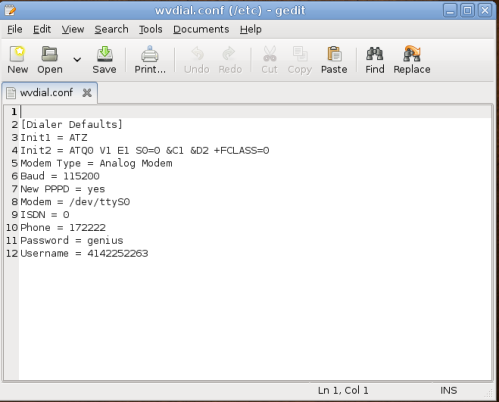
  • Open Terminal and type sudo apt-get install wvdial 
  • Now after putting your password and instaallation completion you go thruogh the following commands sudo gedit /etc/wvdial.conf
Now replace existing text with the following :
[Dialer Defaults]
Init1 = ATZ
Init2 = ATQ0 V1 E1 S0=0 &C1 &D2 +FCLASS=0
Modem Type = USB Modem
Baud = 460800
New PPPD = yes
Modem = /dev/ttyACM0
ISDN = 0
Phone = *99#
Password = A
Username = B
Stupid Mode = 1
  • Replace "A" & "B" from the above code your internet connection Password & Username. If there is no password necessary then leave the above code unchanged.
  • Save & close the editor.
  • Now plug in your data cable into your phone & run the following command from terminal each time you want to connect internet:  : sudo wvdial
  • Done! But if you fail to connect internet then do one of the following:
Unplug mobile cable, wait few seconds, plug again and run wvdial command
Or open /etc/wvdial.conf and replace Phone=*99# with Phone = *99***1#

Monday, November 12, 2012

Create your own Chrome theme in minutes


Usually we go for custom theme and search in Chrome Web Store but here is an extension available to create your Google themes in minutes. Pick your own background image & colors and have it as all yours. Follow some screen shots down here.

Go to the extension and launch it : 


Saturday, October 20, 2012

Flash Video Downloader : Amazing chrome extension for capturing & downloading


Flash video Downloader
Often we go for searching a good download manager but in spite of so many download manager available in the internet, they lack the online stream capturing facility except Internet Download Manager(also fails sometimes if integration is not done). And here is another bad news that FDM has stopped the facility of youtube downloading option. As the profound browser of this era Google chrome makes you happy for the  exemplary extension for online file capturing through
Flash Video Downloader(.crx).

# Go to Chrome Webstore & search for Flash Video Downloader

Features :

  • Quickly & easily download online flash video to PC and convert them to 18 different media formats.
  • Download any files from over one thousand websites including such popular internet resources as Vimeo, Metacafe, Break, Youtube etc. And convert them to 20 differrent audio & video formats.
  • Convert downloaded files to the following formats : 7 video formats (mp4, 3gp, flv, mov, avi, wmv, asf) & 6 audio formats (mp3, wav, aif, ra, rm, mid)
Much more features are included if OpenConverter app is installed.

Monday, August 13, 2012

Download any file from any site : File2HD.com

Often we come across so many downloading problems may be in the browsers itself or not getting a good download manager for free like this but here a clear solution for you. Get through any browser with no integration requirement, it is more easy to get any file from any site online. Try  File2HD.com
Here you get all the required objects like audio, movies, links, applications, style sheets, images etc. iPhone users get an app for free also. In addition to all of this you can avail more facility by getting a premier account. 
File2HD.com
YouTube users where you found youtube blocked, just search your term in google & copy the address and feed to File2HD.com, it will surely get you all the videos from that link. With this you can also convert online and download to various formats like mp3, flv etc.

Tuesday, June 5, 2012

Awesome Google !! (in-built features)

About Google
Google built-in features
Google’s mission is to organize the world’s information and make it universally accessible and useful.
The above lines are from official Google page. Other than search through your words only Google can serve you in many way & we often go for the help of any application or any website providing that feature without knowing that there are a lots of things in built in the browser itself which you are using for years, hence can't get through it. Let you know something :  

Weather

  • To see the weather for many U.S. and worldwide cities, type “weather” followed by the city and state, U.S. zip code, or city and country.

Stock Quotes

  • To see current market data for a given company or fund, type the ticker symbol into the search box. On the results page, you can click the link to see more data from Google Finance.

Time

  • To see the time in many cities around the world, type in “time” and the name of the city.

Sports Scores

  • To see scores and schedules for sports teams type the team name or league name into the search box. This is enabled for many leagues including the National Basketball Association, National Football League, National Hockey League, and Major League Baseball.

Sunrise & Sunset

  • To see the precise times of sunrises and sunsets for many U.S. and worldwide cities, type “sunrise” or “sunset” followed by the city name.

Calculator

  • To use Google’s built-in calculator function, simply enter the calculation you’d like done into the search box
Book Search
  • If you’re looking for results from Google Book Search, you can enter the name of the author or book title into the search box. Then, click on “Books” from the left-hand navigation to view book content. You can click through on the record to view more detailed info about that author or title.

Earthquakes

  • To see information about recent earthquakes in a specific area type “earthquake” followed by the city and state or U.S. zip code. For recent earthquake activity around the world simply type “earthquake” in the search box.

Unit Conversion

  • You can use Google to convert between many different units of measurement of height, weight, and volume among many others. Just enter your desired conversion into the search box and we’ll do the rest.

Public Data

  • To see trends for population and unemployment rates of U.S. states and counties, type "population" or "unemployment rate" followed by a state or county. You can click through to a page that lets you compare different locations.

People Profiles

  • If you’re looking for someone you just met or a long-lost friend, enter the name of that person plus some identifying words about him or her to see a list of people with that name.

Currency Conversion

  • To use our built-in currency converter, simply enter the conversion you’d like done into the Google search box and we’ll provide your answer directly on the results page.

Local Search

  • Local Search
  • Movie Showtimes

Health Search

  • Health Conditions
  • Medications
  • Poison Control
  • Suicide Prevention
  • Flu Vaccine Finder

Query Refinements

  • Related Search
  • Fill in the Blank

Search by Number

  • Package Tracking
  • Patent Numbers

Set-up guide for Hotmail/Gmail account in "Evolution"

Evolution
Here it is recommended for Ubuntu users who often use a mail client that they should go for "Evolution" instead of Thunderbird or Postler or any other client. As Thunderbird suffice all its requirements through  its Mozilla powered Add-ons but still for most of the Operating System Evolution is recommended. Often we go for the settings provlem in this mail client while it is more user friendly in case of Thunderbird. Here we provide the easy setup guide for Hotmail (live)/Gmail users : 
Hotmail :-
When you open up Evolution for the first time you’ll see a setup assistant
  • Forward until you get to the “Identity” screen.
  • Enter you full name and your full email address. 
  • If you want your hotmail account to be your default address leave the tag next to the box.
  • Press forward until you reach the “Receiving Email” windows.
  • Pick “pop” from the drop down list.
  • Fill in the following information:
Server:  pop3.live.com
Username: xxx@hotmail.com (use full email address)
Security: SSL
  • Leave the rest as it is
In the next screen you’ll have to make some decisions for yourself.
  • Now we hit the “Sending Email” screen.  Enter this:
Server:  smtp.live.com
Encryption: SSL
Username: xxx@hotmail.com (enter full email address)
  • Leave the rest as it is
Finally go for a entering password dialog box & it is all yours.
Gmail :-
Here we need some help from our own Gmail account.
  • First go to gmail using your internet browser and log in.
  • On the top of the page there should be a “preferences” link (next to your email address).
  • Now click on the “tab” where you see “imap” and “pop” mentioned.
  • Make sure pop and imap is enabled.
  • If that is done, open evolution.
As we already have an account the Wizard won’t appear.
  • Go to “Edit -> Preferences” and in the window that pops up you will be able to add a new account.
  • In the “Identity” window, enter your name and your email address.
  • Now you’ll  hit the “Receiving Email” window again.
  • Once again choose “pop” from the dropdown list.
  • The server is : “pop.gmail.com” and your username should be your full gmail address. The security should be SSL.
Choose as you see fit in the next window.
  • In the following window, called “Sending Email” enter the following :
Server type: SMTP
Server: smtp.gmail.com
Security: SSL
Username: xxx@gmail.com (enter full email address)
  • Leave the rest as it is.
  • After completion of the next window press apply and then in Evolution press “send/receive”.